

RC Radio Sensor List Explained
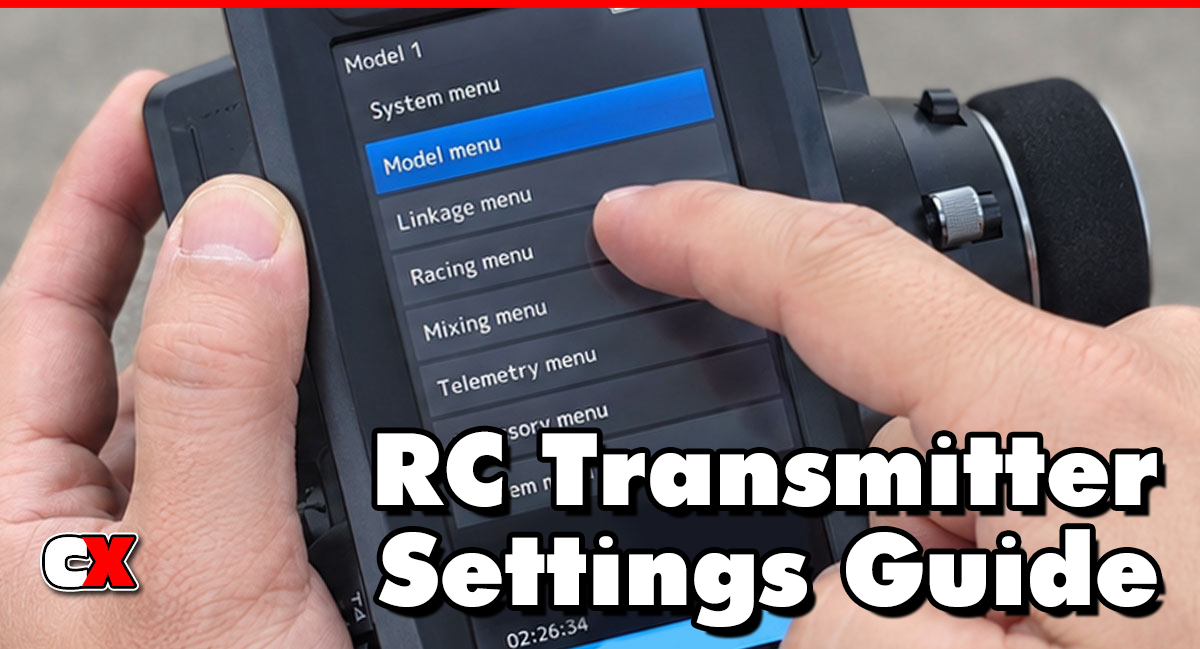
What Is A Sensor List?
Sensor List is a menu found in many advanced RC radio systems that displays all connected telemetry sensors currently communicating with the transmitter or receiver.
These sensors can include:
• Receiver voltage
• Battery voltage
• ESC temperature
• Motor temperature
• RPM
• Speed
• Signal strength
• Altitude
• Current draw
• Lap timing sensors
• Gyro data
The Sensor List acts like a telemetry management page. It allows you to:
• View connected sensors
• Verify communication
• Rename sensors
• Assign alarms
• Change display priority
• Remove unused sensors
• Configure telemetry screens
In most systems, the Sensor List automatically detects compatible telemetry sensors connected to the receiver or ESC.
How Does A Sensor List Affect Your Car?
Sensor List does not directly change the handling or performance of your RC car. Instead, it affects how much information you can monitor and how effectively you can tune or protect your vehicle.
A properly configured Sensor List can help you:
• Prevent overheating
• Detect battery problems
• Monitor gearing efficiency
• Improve tuning consistency
• Catch signal issues early
• Track lap performance
• Improve reliability during long runs
For example:
Racing
A racer may monitor:
• ESC temperature
• Motor temperature
• Receiver voltage
• Lap timing data
This helps identify overheating issues before performance drops.
Crawling
A crawler driver may monitor:
• Battery voltage
• Motor temperature
• Receiver signal strength
This is useful during long trail runs where overheating or low voltage can end a session early.
Drifting
A drift driver may monitor:
• Gyro gain telemetry
• ESC temperature
• RPM
This helps maintain consistent vehicle balance during long tandem sessions.
Speed Running
A speed runner may monitor:
• GPS speed
• Voltage sag
• RPM
• Signal quality
This allows safer high-speed tuning.
Without a properly configured Sensor List, telemetry data may become disorganized, inaccurate or difficult to access while driving.
How Do You Adjust The Sensor List?
The exact process depends on the radio brand, but the overall procedure is similar across most high-end transmitters.
Typical Sensor List Setup Process
1. Open the Telemetry Menu
Navigate to:
• Telemetry
• Sensors
• Telemetry Setup
• Sensor List
2. Scan for Sensors
Most radios include an Auto Detect or Search feature. The radio scans the receiver for connected telemetry devices and adds them to the Sensor List.
3. Rename Sensors
You can often rename sensors for easier identification.
Example:
• SENSOR1 – Motor Temp
• SENSOR2 – ESC Temp
This makes telemetry screens easier to understand during driving.
4. Assign Alarms
Many radios allow warning alarms for:
• High temperatures
• Low voltage
• Weak signal strength
• Excessive RPM
Example:
• Motor Temp Alarm: 180°F
• LiPo Voltage Alarm: 3.5v per cell
5. Organize Display Order
Some radios allow you to prioritize important telemetry items.
You may place:
• Battery Voltage
• Motor Temp
• ESC Temp
…at the top of the Sensor List for faster viewing.
6. Remove Unused Sensors
Deleting inactive or duplicate sensors keeps the system cleaner and easier to navigate.
When To Change The Sensor List
You should update or modify the Sensor List whenever you:
Install New Electronics
Adding:
• New ESC
• Telemetry receiver
• Temperature sensor
• GPS module
• RPM sensor
…usually requires rescanning or reorganizing the Sensor List.
Change Vehicles
Different vehicles may use different telemetry configurations.
Your touring car may use:
• RPM
• Temp
• Voltage
…while your crawler may only use:
• Voltage
• Motor temp
Prepare for Racing
Before competition, verify all telemetry sensors are:
• Detected correctly
• Reporting accurately
• Properly named
• Alarmed correctly
Troubleshooting Problems
If telemetry data disappears or displays incorrectly, rescanning the Sensor List often fixes communication issues.
Update Firmware
Radio or receiver firmware updates may reset or reorganize telemetry settings.
What To Check After Changing The Sensor List
After changing any Sensor List settings, inspect the following areas carefully.
Sensor Communication
Verify all sensors are updating live data correctly.
A frozen value usually indicates:
• Loose wiring
• Incorrect port assignment
• Failed sensor
• Incompatible firmware
Alarm Settings
Confirm alarms are not set too aggressively. Overly sensitive alarms can become distracting during driving.
Telemetry Accuracy
Compare telemetry values with known measurements.
Example:
• Check motor temp with an infrared temp gun
• Verify battery voltage using a voltage checker
Receiver Signal Strength
Make sure telemetry updates remain stable at long range. Poor signal quality can cause delayed telemetry data.
Wiring Security
Inspect telemetry wiring for:
• Loose plugs
• Pinched wires
• Incorrect polarity
• Vibration damage
Display Layout
Ensure the telemetry screens show the most important information first. Important racing data should be easy to read quickly.
Basic Sensor List vs Advanced Settings
Basic Sensor List Settings
Basic users typically focus on simple telemetry monitoring.
Common beginner Sensor List functions include:
• Auto sensor detection
• Battery voltage monitoring
• Temperature monitoring
• Basic alarm setup
• Simple telemetry screens
These settings improve reliability without requiring advanced tuning knowledge.
Recommended Beginner Setup
• Receiver Voltage
• ESC Temperature
• Motor Temperature
• Battery Voltage
This gives most drivers enough information to protect their electronics.
Advanced Sensor List Settings
Advanced racers and experienced drivers often use more detailed telemetry management.
Advanced Sensor List features may include:
• Custom telemetry screens
• Data logging
• Multiple temperature sensors
• RPM tracking
• GPS speed analysis
• Signal strength monitoring
• Voice telemetry alerts
• Sensor prioritization
• Telemetry-based tuning analysis
Advanced Racing Example
An on-road racer may monitor:
• Motor RPM
• ESC Temp
• Motor Temp
• Receiver Voltage
• Lap Timing
• Signal Strength
This allows extremely detailed tuning and consistency analysis.
Advanced Crawling Example
A crawler driver may use:
• Battery voltage alarms
• Motor temperature alerts
• Incline angle sensors
• GPS tracking
…during long trail sessions.
Common Sensor List Problems
Sensors Not Appearing
Possible causes include:
• Incorrect wiring
• Unsupported sensor
• Receiver incompatibility
• Firmware mismatch
Duplicate Sensors
Some radios create duplicate entries after rescanning. Delete inactive entries to clean up the Sensor List.
Telemetry Lag
Laggy telemetry may result from:
• Weak receiver signal
• Excessive sensor count
• Interference
• Outdated firmware
Incorrect Readings
Always verify:
• Calibration
• Sensor placement
• Connector condition
• Firmware compatibility
FAQ
Q: Does the Sensor List change how my RC car drives?
A: No. The Sensor List itself does not directly affect handling or performance. It organizes telemetry data that helps you monitor and tune your vehicle more effectively.
Q: Do all RC radios support a Sensor List?
A: No. The Sensor List features are usually found on mid-range and high-end radios with telemetry capability.
Q: Is the Sensor List important for beginners?
A: Yes. Even basic telemetry like battery voltage and temperature monitoring can help beginners avoid damaging electronics.
Q: Can the Sensor List improve racing performance?
A: Indirectly, yes. Telemetry data can help racers optimize gearing, temperatures and consistency.
Q: Why are my sensors not showing up?
A: Common causes include incompatible sensors, loose wiring, incorrect receiver ports or outdated firmware.
Q: Should I delete unused sensors?
A: Yes. Removing inactive sensors makes the telemetry system easier to navigate and reduces confusion.
Q: Can I use multiple temperature sensors?
A: Yes. Many advanced radio systems support multiple temperature sensors for monitoring both the ESC and motor separately.
Q: Does telemetry reduce radio performance?
A: Modern systems are designed to handle telemetry efficiently. However, excessive telemetry traffic or poor signal conditions may slightly affect update speed.
Back to the RC Transmitter Settings Guide.

